

multipart/form-data and stores the file in your configured S3-compatible bucket. The submission data will include a URL under either file or image depending on the MIME type.
If you are self-hosting, make sure storage credentials are configured before enabling file uploads.
1
Configure storage
Set the
STORAGE_* environment variables so Formbase can connect to your bucket. See File storage for examples.2
Add a file input
multipart/form-data.3
Check the submission
In the dashboard, the uploaded file appears as a clickable URL under 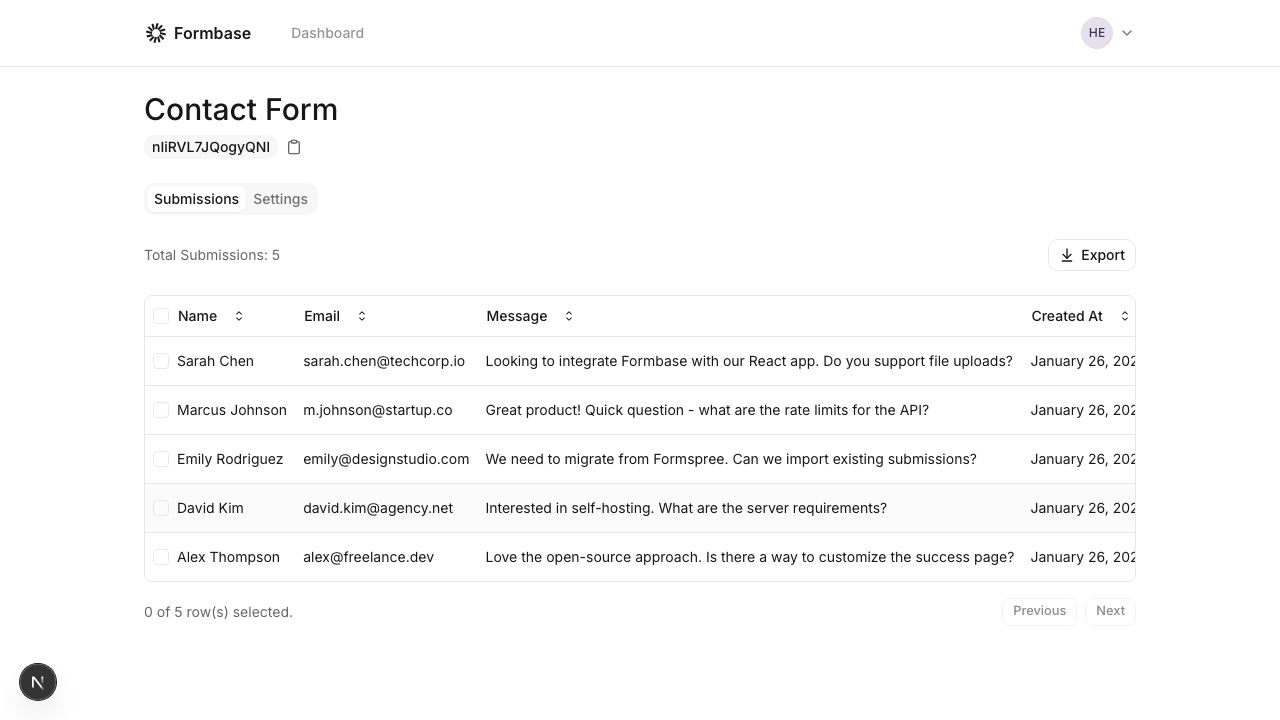
file or image.JavaScript submission
If you need a custom UI, submit with fetch andFormData:
Formbase stores uploaded files as signed URLs. The original filename is not preserved.