> ## Documentation Index
> Fetch the complete documentation index at: https://docs.formbase.dev/llms.txt
> Use this file to discover all available pages before exploring further.
# Viewing Submissions
> See submissions in your dashboard with sorting, pagination, and file previews.
The Formbase dashboard shows all submissions for a form in a table that grows with your fields. New field names become new columns automatically, so you do not need to define a schema up front.
Use this page to review data, download files, and delete entries when needed.
In the dashboard, click the form you want to inspect and open the "Submissions" tab.
Each row is a submission. Columns are created from submitted field names, plus a "Created At" timestamp.
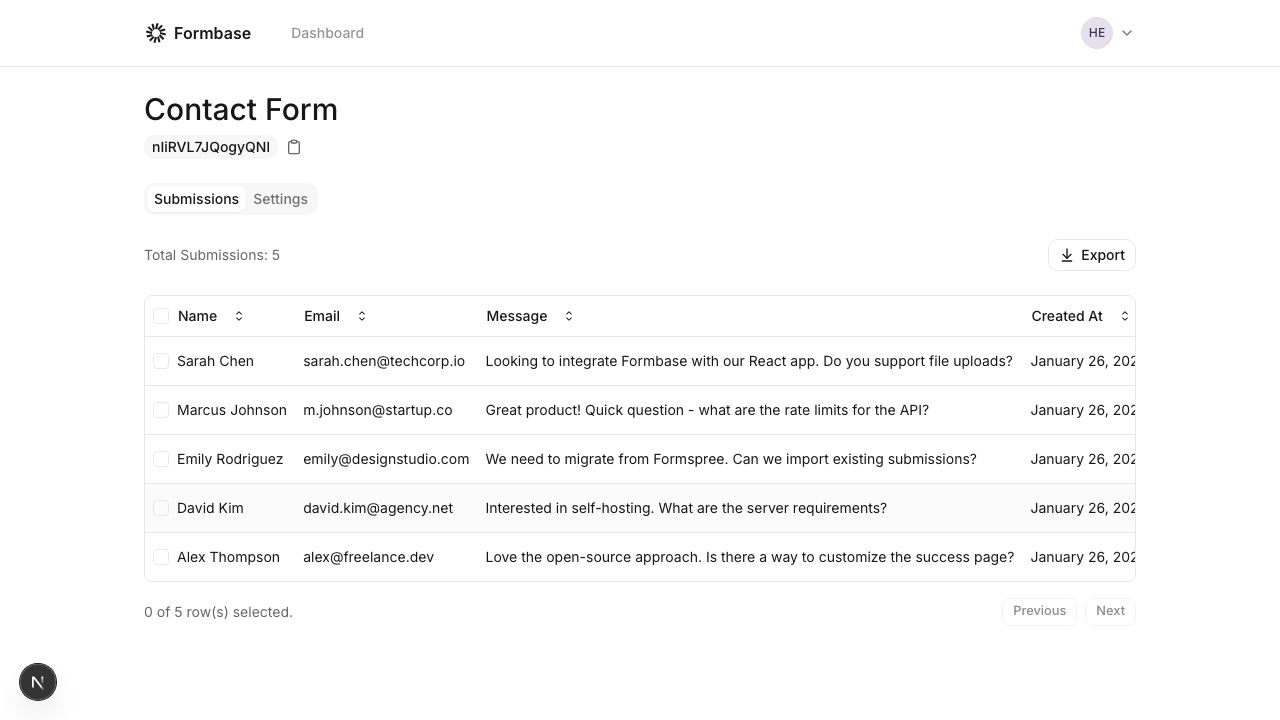 If a submission includes a `file` or `image` URL, the table shows a downloadable link. Images include a quick preview dialog.
## Tips
* Click a column header to sort.
* Use the pagination controls at the bottom to navigate large datasets.
* Select rows if you want to delete individual submissions.
Formbase stores submission data exactly as it is sent. If you rename fields in your frontend, new columns will appear for the new names.
If a submission includes a `file` or `image` URL, the table shows a downloadable link. Images include a quick preview dialog.
## Tips
* Click a column header to sort.
* Use the pagination controls at the bottom to navigate large datasets.
* Select rows if you want to delete individual submissions.
Formbase stores submission data exactly as it is sent. If you rename fields in your frontend, new columns will appear for the new names.