> ## Documentation Index
> Fetch the complete documentation index at: https://docs.formbase.dev/llms.txt
> Use this file to discover all available pages before exploring further.
# Exporting to CSV
> Download submissions as a CSV file.
CSV exports are useful for spreadsheets and quick analysis. Formbase generates a CSV with columns based on your form's field names and a row for each submission.
Use CSV when your data is mostly flat (text, email, single-value fields).
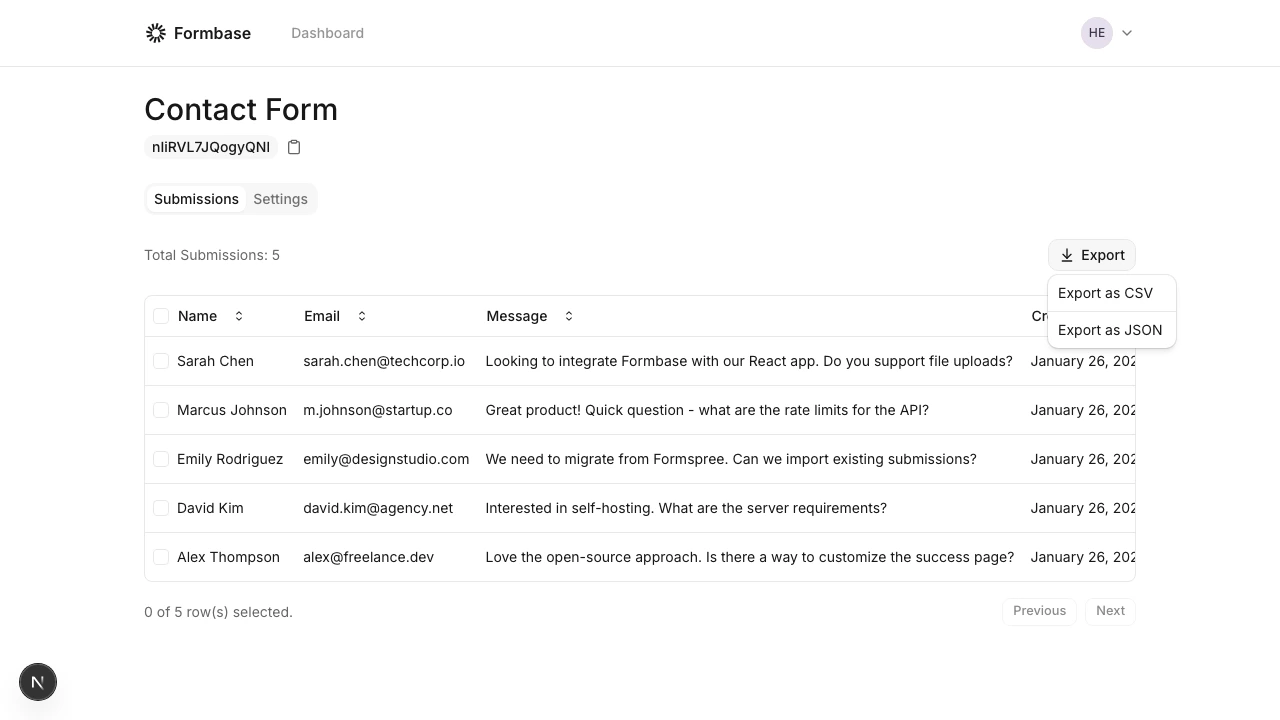
In the dashboard, open the form and go to the "Submissions" tab.
Click the "Export" button and choose "Export as CSV". The file downloads immediately.
 ## What to expect in the CSV
* Columns are the field names you have submitted.
* Missing fields appear as empty cells.
* File uploads appear as URLs under `file` or `image`.
If you need nested data or arrays, use the JSON export instead.
## What to expect in the CSV
* Columns are the field names you have submitted.
* Missing fields appear as empty cells.
* File uploads appear as URLs under `file` or `image`.
If you need nested data or arrays, use the JSON export instead.