> ## Documentation Index
> Fetch the complete documentation index at: https://docs.formbase.dev/llms.txt
> Use this file to discover all available pages before exploring further.
# Receiving Your First Submission
> Submit a test payload, confirm it appears in the dashboard, and verify notifications.
Once you have an endpoint, send a test submission to confirm everything is wired correctly. This also verifies your email notification setup if it is enabled.
Use the method that best matches how you plan to collect submissions in production.
Pick one of the options below and submit a test payload.
Open your website, fill in the form, and submit. This confirms the end-to-end flow works in a real browser.
```js theme={null}
const response = await fetch('https://formbase.dev/s/YOUR_FORM_ID', {
method: 'POST',
body: new FormData(document.querySelector('form')),
redirect: 'manual',
});
if (response.status === 303 || response.ok) {
console.log('Submitted');
}
```
Browser requests receive a `303` redirect. Treat that as success.
```bash theme={null}
curl -X POST https://formbase.dev/s/YOUR_FORM_ID \
-H "Content-Type: application/json" \
-d '{"name":"Ada","email":"ada@example.com"}'
```
Server submissions return JSON with the data you sent.
Open your form in the dashboard and confirm the submission appears in the table. New field names will show up as columns automatically.
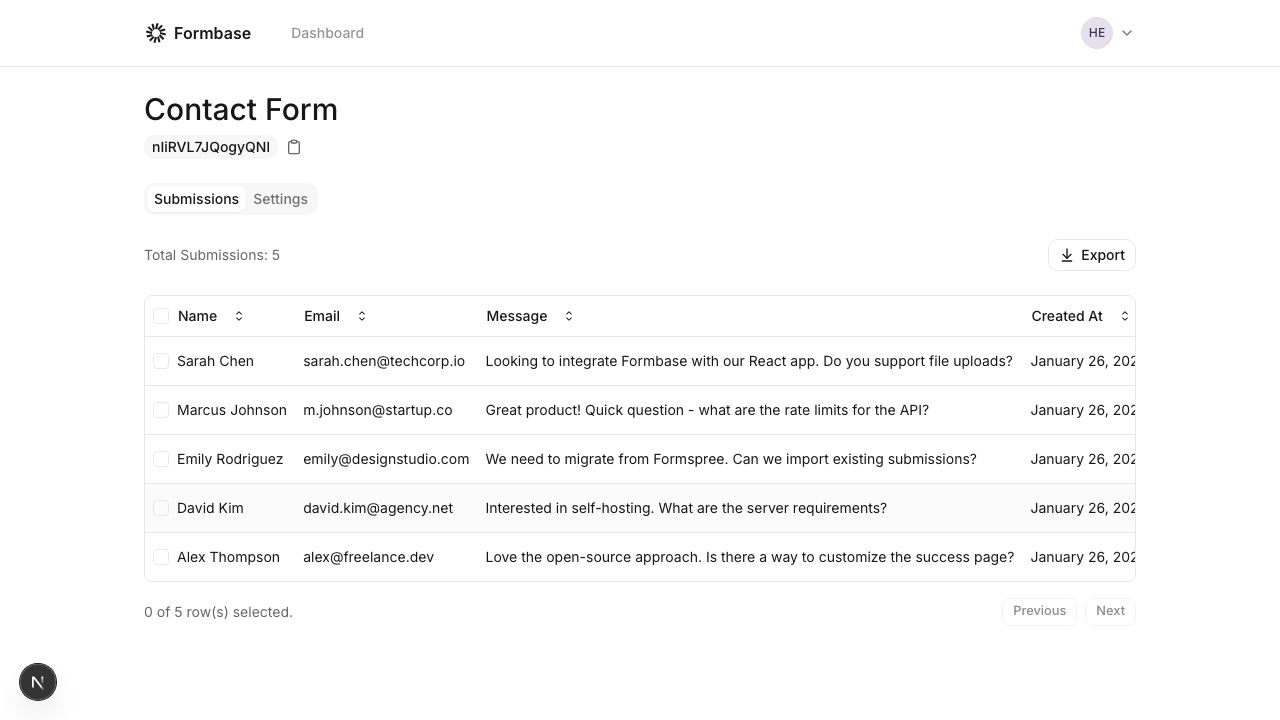 If email notifications are enabled, you should receive a message with the submission data. Make sure your SMTP or Resend configuration is set up if you are self-hosting.
If you are not receiving emails in a self-hosted environment, review the [Email setup](/self-hosting/email-setup) guide.
If email notifications are enabled, you should receive a message with the submission data. Make sure your SMTP or Resend configuration is set up if you are self-hosting.
If you are not receiving emails in a self-hosted environment, review the [Email setup](/self-hosting/email-setup) guide.